Use the MetaConfigurator#
MetaConfigurator is a browser-based editor that can generate an editing form from a JSON Schema. It can be used for writing and editing pyAML configuration files without having to remember every available field and its expected type.
Prepare a JSON Schema#
Pre-generated schemas are available in pyaml-schemas. These include the classes that are part of the pyAML ecosystem.
If you have facility specific classes that you want to include in your configuration, you can use the SchemaRegistry to generate a JSON Schema including them. See Generate JSON Schemas for details.
The schema must describe the document you want to create. For example, a schema for a quadrupole is suitable for editing a quadrupole object, but not for editing a complete accelerator containing controls, simulators, and devices.
Overview of MetaConfigurator#
Open the MetaConfigurator in a browser. In this guide we use the experimental version to benefit from the latest bug fixes.
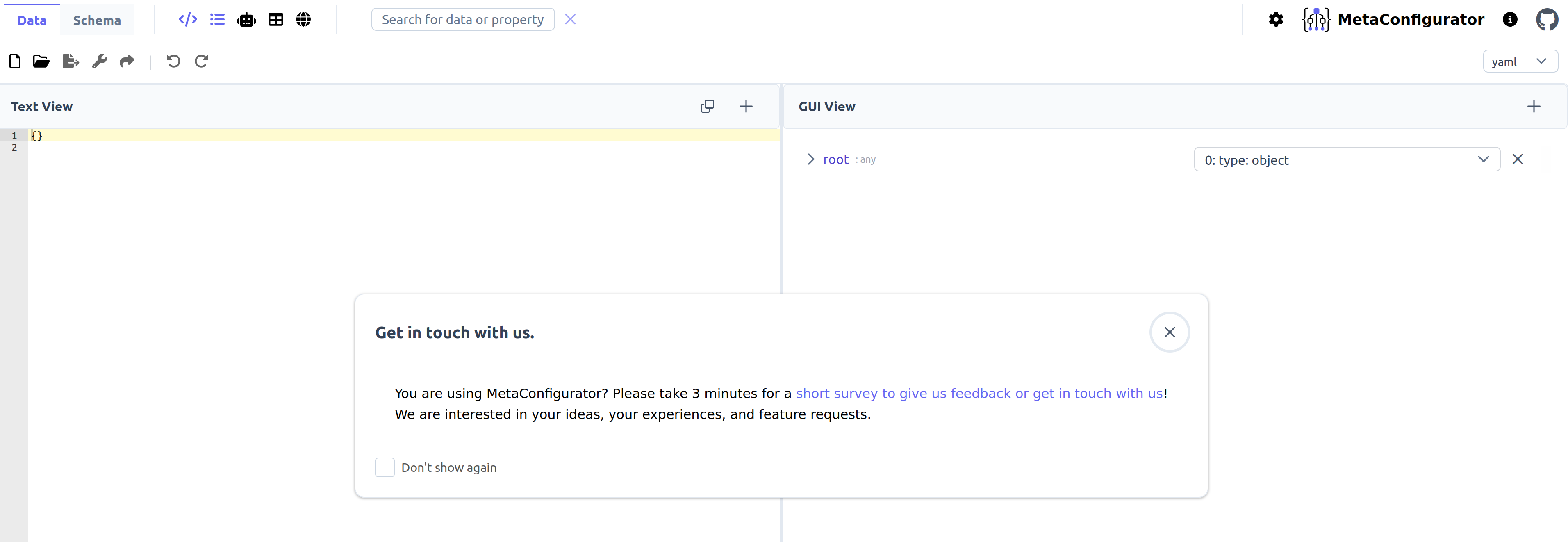
Frontpage of the MetaConfigurator.#
The editor has two different pages: data and schema. The menu in the top left corner shows which page you are currently on. When loading the site from start it normally opens on the data page. The pages have different purposes:
Data: edit and validate data against a schema
Schema: edit or generate a schema
In this guide we will focus on the data page but there is also a lot of other functionality to explore. See the MetaConfigurator Documentation for this.
On the data page, the editor has two areas:
Text view (on the left): shows and edits the JSON or YAML document.
GUI view (on the right): presents the document as a form generated from the loaded schema. Here you can add values and choose options in a menu.
The GUI view is convenient for knowing which fields exist and their required types. The Text view is useful for checking the final structure and for switching between supported formats.
Load the Schema#
Use the schema menu to load the JSON Schema. This menu normally shows directly when loading the page. If not, you need to switch to the schema page to load it. You can load the schema from a file or an URL.
Switch back to the data page. In the GUI view you should now see a form with fields. Above this view there is an option to choose the format for the text view.
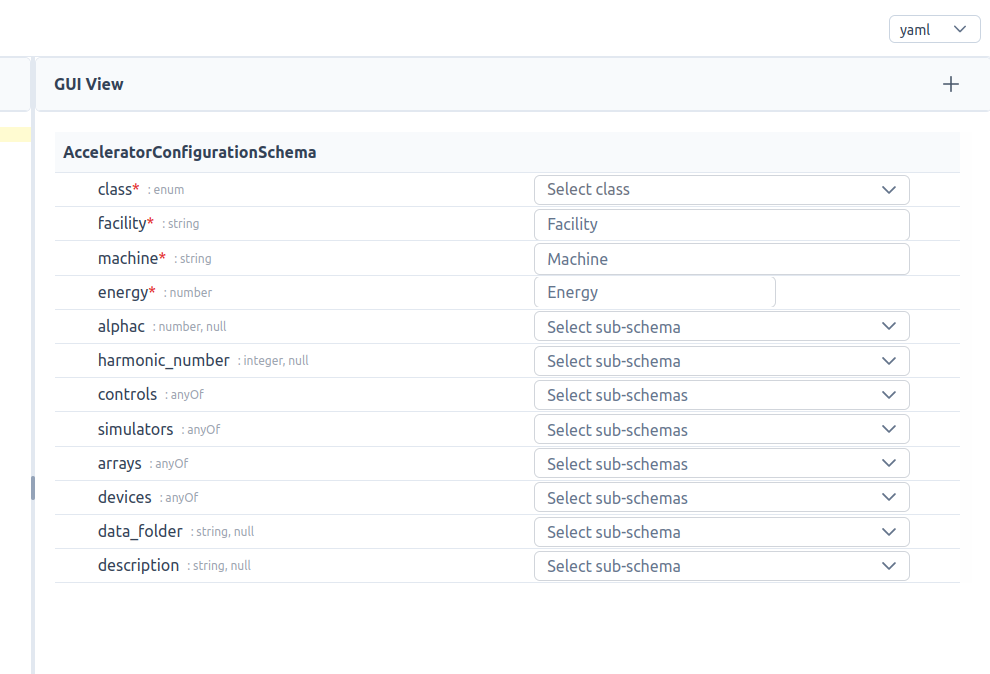
GUI view after loading the accelerator schema.#
Create the Configuration#
Start with the top-level object expected by the schema. Set the class field to the fully qualified path to the Python class that pyAML should build when loading the configuration. The available options will be shown in a drop down menu.
The exact fields depend on the schema and the class being configured. Use the GUI view to add properties and enter values, then inspect the generated document in the text view.
There is also an option to use AI prompts to modify the data but this might require configuring your own backend connection for frequent use. See the AI Assistance Documentation.
Export the Result#
When the document is complete, use the menu in the text view to download the file. It can then be used in pyAML.